If buying in bulk yields more food/supplies than you can use on your own, find a friend & split the order in half.
Setting up the PearBudget spreadsheet for a new year
If you’ve been using the PearBudget spreadsheet for a year (or more) and would like to start a new blank year, here are the steps you can follow for a smooth transition.
Step 1
– Get a fresh copy of the PearBudget spreadsheet. You can download it (for free) here: https://pearbudget.com/spreadsheet
– When you save it to your computer, you’ll probably want to name it something like “2012 budget” so you don’t get it confused with your old budget(s).
Step 2
– Open up both your NEW and your OLD copies of the spreadsheet.
– Go to the “start here” tab on both spreadsheets
Step 3
– Click and drag your mouse over the OLD spreadsheet’s “variable” category names, selecting multiple cells in the spreadsheet
– Right click (or hit Command+C) to COPY the cells, and then go to the NEW spreadsheet and PASTE them in (Command + V or right-click and select “paste”)
Step 4
– Repeat that process with your “regular” and “irregular” categories, and the “amounts to budget” section for each group of categories.
That should set you up with a brand new copy of your budget for a new year. At any point, you can make modifications to it, in case you need to budget more or less for a category, or add a new category, or whatever. Don’t forget to save the new spreadsheet as you go along!
If that didn’t answer your question, get in touch with us by e-mail, at help@pearbudget.com.
How do I add a recurring receipt?
If you’ve got a category with a receipt amount that occurs monthly on the same date (like a mortgage payment or utility bill), you can set up a recurring receipt in PearBudget to automatically create this receipt every month, so you don’t have to enter it yourself. Here’s how!
First, go to either the “Plan Your Budget” or the “Review Your Spending” page and find the category you’d like to add the receipt for. Click on the name of the category and a little window like this will show up:
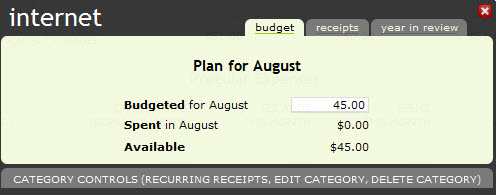
Then, click on the bottom of the pop up, where it says “Recurring Receipts.” That will make the pop-up window slightly larger, as shown.
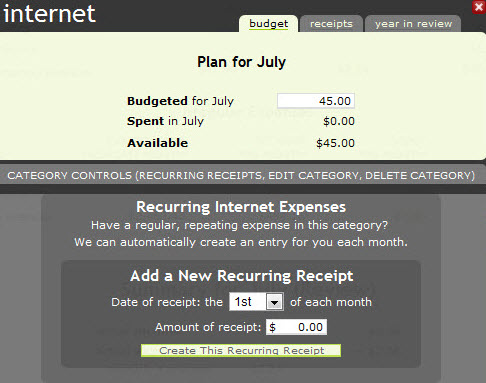
Finally, just choose the date and amount of the receipt, and click on the button that says “Create This Recurring Receipt.” From then on, PearBudget will automatically make a receipt for you on that day for that amount in that category!
If that didn’t answer your question, get in touch with us by e-mail, at help@pearbudget.com.
I’m having some trouble. What should I do?
The best thing you can do is to shoot us a note (help@pearbudget.com) and let us know the page you were on and what you were trying to do. It’s really helpful if you can tell us what kind of computer you’re using (Mac or PC), as well as what browser you’re using.
If that didn’t answer your question, get in touch with us by e-mail, at help@pearbudget.com.
What browsers does PearBudget work on? What operating systems? Will it work with my computer?
PearBudget will work with both PCs and with Macs. Because it’s all online, there’s no software for you to download or worry about.
PearBudget will work with Firefox, Chrome, Safari, Opera, and Internet Explorer (versions 7 and higher).
If you use Internet Explorer, we recommend upgrading (for free) to the latest version, here: Free Internet Explorer upgrade. Or, you might consider using the even safer, even faster browser, Firefox.
If that didn’t answer your question, get in touch with us by e-mail, at help@pearbudget.com.
Is the old PearBudget spreadsheet still available?
Of course! We intend to keep it available, forever, for free. You can download it from https://pearbudget.com/PearBudget.xls.
If that didn’t answer your question, get in touch with us by e-mail, at help@pearbudget.com.
Is PearBudget secure?
The entirety of our site is hosted on a secure server, using 128-bit encryption. When you log in, we set up a secure line for you to connect with our server, meaning nobody can intercept the information you’re passing through to the PearBudget database.
Furthermore, at no point do you put your bank account numbers, credit card numbers, online banking IDs, or bank passwords into PearBudget. We’ve built a tool that helps you do your budgeting. Period. PearBudget can’t access your online bank account, and therefore is not attractive to hackers or identity thieves. Your sensitive and private financial information stays at home with you, not online.
When it comes to billing, we don’t store the credit card number used to create your PearBudget account. We use a secure credit card processor (Level 1 PCI-compliant), and when it’s time for your account to renew, we submit your customer ID to them, and the order is passed on to your credit card company. We do not store your credit card number or other billing information on our servers.
We will not share, sell, give away, or otherwise distribute any personal information entered into the site or its databases, forms, or forums. This includes your e-mail address, password, budget, expenses, and any other data entered into the service.
If that didn’t answer your question, get in touch with us by e-mail, at help@pearbudget.com.
Where does the name “PearBudget” come from?
When we first started building PearBudget, we knew one thing: We wanted something simpler than everything else out there. So we challenged every assumption about what was necessary for a budget to work, and we came up with a surprisingly short list of crucial elements.
We began building this ideal budgeting tool, and kept referring to it as “the pared-down budget.” Over time, we even pared down that name, and ended up with the cute moniker “PearBudget.”
If that didn’t answer your question, get in touch with us by e-mail, at help@pearbudget.com.
Who’s behind PearBudget? Why’d you make it?
We’re Charlie and Sarah Park. We’re a husband-and-wife team, living and working in Virginia.
We built PearBudget when we couldn’t find a budgeting tool that was simple enough for us to use. As a young couple without much money, we were aware that unless we kept an eye on our spending, we wouldn’t be able to stay out of debt.
We looked at a bunch of different budgeting programs, and we realized that they tried to do too much. They tried to do the wrong things. They included charts that were really pretty but didn’t tell us anything useful, and features that were completely unnecessary.
So we built PearBudget, first as a downloadable spreadsheet. After it had been downloaded over 100,000 times, we re-launched it, in an even simpler (and even more powerful) format.
We’ve spent two years crafting this application, paring away everything that isn’t absolutely crucial for keeping a budget. It works terrifically well for us (and, now, thousands of others), and we hope it’ll be great for you, too. Thanks for checking it out!
In 2011, we brought one of our most active users, Ruth Szpunar, on, to help us with customer service. If you need to reach us, send us an e-mail, at help@pearbudget.com, and Ruth’ll probably be the one to get back to you. She’s awesome!
If that didn’t answer your question, get in touch with us by e-mail, at help@pearbudget.com.
I’d like to close my PearBudget account. How can I do that?
It’s easy. Before you delete your account, be absolutely sure that it’s what you want to do … there’s no “undo” for account deletion. Also, before you delete your account, we’d love to hear from you. If there’s something you want PearBudget to do, and you don’t think it can do it, shoot us a note and let us know. We’ve focused on making PearBudget’s design clean, elegant, and simple — so there’s a lot PearBudget can do that we don’t put up front. Maybe we can help you find it. Get in touch: (help@pearbudget.com).
Anyway, if you do want to delete your account, here’s what you do …
- On any of your account pages (like your Enter page), click on your e-mail address in the upper-right corner of the screen. [Result: it’ll open up a pop-up box with your account information.]
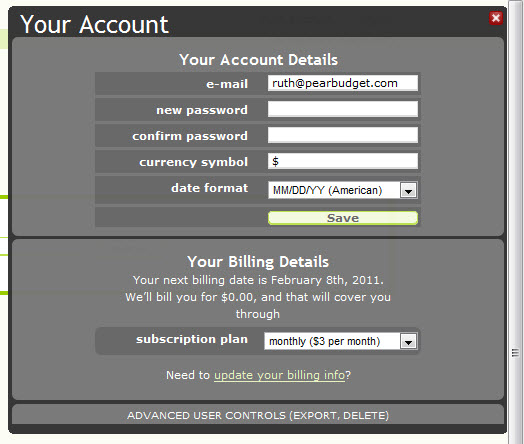
- Look for text at the bottom of that pop-up box that says “Advanced User Controls” and then “Delete”. Click on the word Delete. [Result: it’ll drop down some text, including a link that says “Delete your account”.]
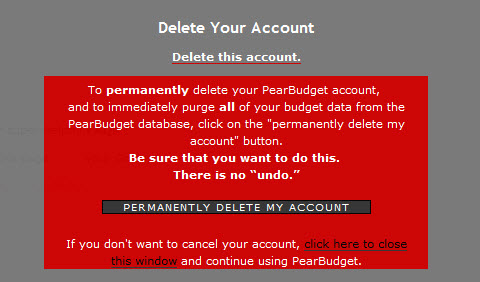
- Look for the white text with a red underline that says “Delete your account”. Click on it. [Result: it’ll drop down a big red box.]
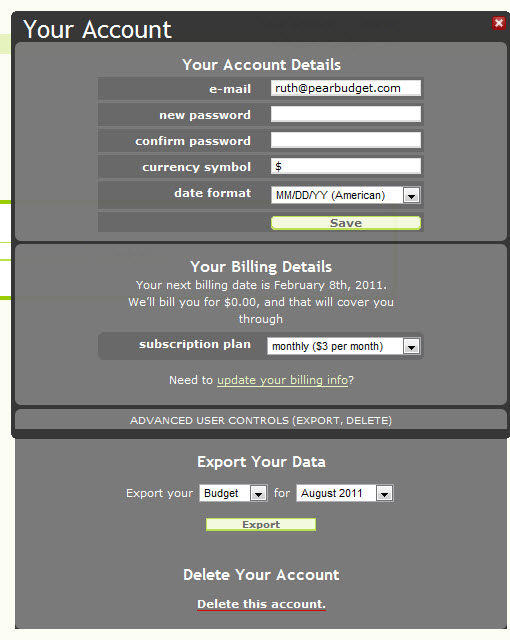
- You should see a dark gray button that says “Permanently delete my account”. Clicking on this button will delete your account, and will purge your budget data from the PearBudget database. [Result: your screen will refresh, taking you back to the main PearBudget front page.]
We’re sorry there are a few steps in that process. We just want to make sure that people only delete their accounts when they really want to.
If that didn’t answer your question, get in touch with us by e-mail, at help@pearbudget.com.