Absolutely! To subscribe by PayPal, just send your payment to the PayPal user address charlie@pearbudget.com. Be sure in the “notes” section of the PayPal transaction to indicate the e-mail address you’re using at PearBudget. It’s also not a bad idea to send us an e-mail (at that same pearbudget.com address) to make sure we’ve received the payment.
In terms of the amount of the payment, $49.50 gets you a year’s coverage.
As with everything else, if you have any questions, please send us an e-mail. Thanks!
If that didn’t answer your question, get in touch with us by e-mail, at help@pearbudget.com.
We don’t want for “hidden” activity in your inactive categories to throw off your totals. To protect you from that happening, if you have any activity in an inactive category in a given month, the category will show up on your Plan and Review pages (just like a regular category).
So if you’ve made a category inactive, but it’s still showing up on your Plan / Review pages, it’s probably because of some activity in the category in the current month.
If that didn’t answer your question, get in touch with us by e-mail, at help@pearbudget.com.
Here’s the most important thing about deleting a category: When you delete a category, you also delete all of the receipts (from all time) that were a part of that category. It’s totally fine to delete a category, and often that’s exactly what you’ll want to do. But if you want to keep your receipts from a category intact, and just not include it in your monthly budget anymore, what you’ll want to do is to make it inactive.
To either delete or “make inactive,” just do this:
click on the name of the category (you’ll get a pop-up box with category details)
click on the gray bar at the bottom of the pop-up (it’ll expand, showing you some more options)
find either the “make this category inactive” or the “delete this category” section (depending on which one you want to do) and just click the button
you’ll probably need to reload the page, as well
That should do it for removing the category. Remember: “deleting” a category is permanent, so only go that route if you’re sure that’s what you want to do. You can always delete an “inactive” category later on, but you can’t bring a “deleted” category back from the dead. We’re a strict no-zombie website!
One note on “inactive” categories — if you have any activity in an inactive category in a given month, the category will show up on your Plan and Review pages. That way, you can bring an inactive category out of retirement just by recording a receipt for it, or by setting money aside in a certain month. So if you’ve made a category inactive, but it’s still showing up on your Plan / Review pages, it’s probably because of some activity in the category in the current month.
Okay. One more quick note on inactive categories. To record a receipt in an inactive category, just enter it as normal, and when you get to the “category” dropdown box, look at the veeeeery bottom of the list of categories. You should see your inactive categories listed there.
If that didn’t answer your question, get in touch with us by e-mail, at help@pearbudget.com.
You can either use a comma or a period, followed by a space, to split up your tags. So if you’re on an iPhone or another smartphone, you can stay on the normal keyboard view.
If that didn’t answer your question, get in touch with us by e-mail, at help@pearbudget.com.
Definitely! Just go to https://www.pearbudget.com/tags/all. If you’d like to view receipts for a tag or delete it from that list, clicking on it will allow you to do both.
If that didn’t answer your question, get in touch with us by e-mail, at help@pearbudget.com.
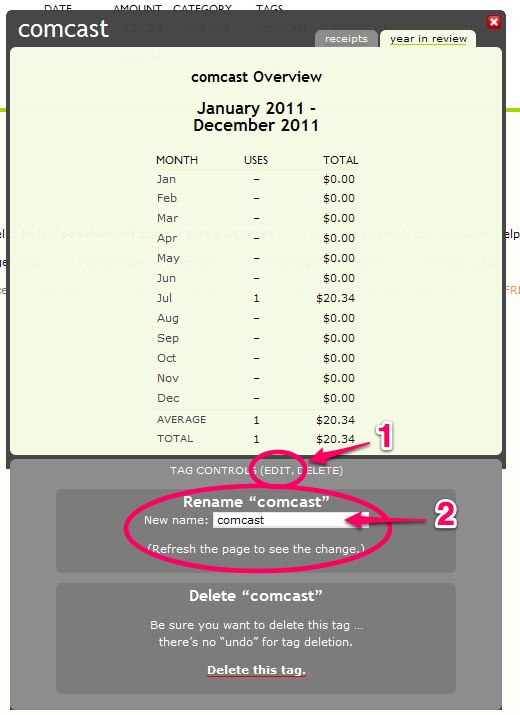
Each tag has a pop-up box with details on the tag. You get this pop-up box to appear by clicking on the tag’s name. You can view all your tags here and select one: https://pearbudget.com/tags/all, or you can go to the Review Your Spending page and click on “receipts” or on “tags.” Then click on the name of the tag you’d like to change. (In the example below, you’d click on “comcast.”)
Now, the pop-up will appear. Once it opens, click on the word “EDIT” at the bottom of the box and this will expand the box. You’ll see the option to change the name of the tag there towards the bottom. Once you change the name, you should see the tag’s new name when you refresh the page.
If that didn’t answer your question, get in touch with us by e-mail, at help@pearbudget.com.
A “tag” is a short description or keyword that you can use to label your receipts. Tags are notnecessary, and many people new to PearBudget don’t use them. But they can be really useful, and once you’re comfortable with them, you can do some pretty cool things with them.
For example, Sarah and I got an oil change on our red minivan last week. We put it in the category “car maintenance.” We then used the tags “oil change” (so we’d remember what work we had done), “red minivan” (so we’d know which car had the oil change), and “Colonial Foreign Car” (so we’d know where we had the work done). None of those tags are necessary, but at the end of the year, we can look back at all of our receipts tagged with “red minivan,” and see how much it cost us over the year. Or, we can see all the work we had done over the year.
We’d write those tags into PearBudget like this (note how we use commas to separate the tags):
You can make up whatever tags you want. Note that a period or a comma that isn’t followed by a space won’t be split into two tags. So you’d want “kids, clothing” rather than “kids,clothing”. Here are some fancier tag examples:
Single-Use Tags
Using that example from above, with the oil change: let’s say we wanted to include the mileage of the van when we took it in. We could use a “single-use tag,” like this: *134,126. See that asterisk (*)? Now, when we look at our list of tags, that one won’t be in the list, but it’ll still be associated with that receipt, and with the car maintenance category. So at the end of the year, we could look at all car maintenance receipts (or all receipts tagged with “red minivan”) and we’d see the mileage of the car throughout the year. Slick.
Checkbook Balancing
You can use tags to give you an easy way to balance your checkbook. Whenever you write a check and you enter it into PearBudget, use two tags — the tag “check” and the single-use tag of the check number (so, “*1034” or whatever).
Whenever you want to balance your checkbook, just do this: get your last bank statement (or go online to get it), and look up your check tag on PearBudget. PearBudget will tell you all of the checks you’ve written, and your bank will tell you all of the checks that have been cashed. So you can quickly see which ones are still outstanding, and you can quickly figure out how much money you really have available in your checking account.
Tracking Credit Card Use
Let’s say you want to know what your credit card bill will be before you get it in the mail. Just use the tag “visa” (or whatever) to note which expenses you used the card with. PearBudget will tally up your expenses across categories, and you can see what you’ve spent over the month, regardless of the category you spent it on.
If that didn’t answer your question, get in touch with us by e-mail, at help@pearbudget.com.
Ultimately, it depends on the questions you’re trying to answer.
Most people are trying to answer something like this: “Out of the money that’s come in, and the money that’s committed to immovable expenses (like my mortgage / insurance / car payment / other things), what’s left for my discretionary spending (on stuff like entertainment / dining out / clothing)?” In cases like that, we recommend entering in every receipt, even for expenses where you don’t actually get a bill (like if your insurance is auto-drafted from your checking account).
That being said, you’ll probably notice that there are a few categories that are especially problematic for you and your family. (Dining out is a big one.) Even though you’re entering in receipts in lots of categories, you’d do well to pay special attention to those “trouble” categories in particular.
If that didn’t answer your question, get in touch with us by e-mail, at help@pearbudget.com.
Planning ahead is tricky. It’s like driving down the highway: Rather than picking the one spot 1,000 feet down the road and driving without adjusting the steering wheel, you point in the right direction and make small course adjustments as necessary.
Similarly, each month you’ll want to make small tweaks and adjustments. Maybe gasoline costs more at the gas station, so you have to adjust the amount you’re budgeting for car gas. That, in turn, will affect groceries, or clothing, or dining out.
Because of all that, we limit how far ahead you can plan your budget — you can make adjustments for past months, and the current month, and one month into the future.
We know that limitation might create some frustration. We’ve found, though, that when there aren’t limits like that, users in their zeal create budget plans for months in the future that — once they get there ’ are totally unrealistic.
If that didn’t answer your question, get in touch with us by e-mail, at help@pearbudget.com.
We’ve put our entire Help resource on our blog, to make it super-easy to search and find answers to your questions.
To find the answer to your help request, you can visit our most frequently-asked questions, or you can just search in this box. (It’ll only include posts and articles in the “help” category.)
Below are some of our FAQs, but for a more comprehensive list, head on over to our FAQ page.
PearBudget is a really simple budgeting tool. It’s perfect for people who know they probably should budget, but who aren’t sure how to go about it.
You can set up a budget for free, and if you want to use it after the free 30-day trial, it’s only $4.95 a month — you’ll save at least ten times as much every month.