PearBudget beautiful, simple budgeting. (This is our blog.)

Go to the PearBudget website »

I have some money that I’d saved up from before I started using PearBudget. How do I record those savings, to show that that money’s available?

Entering in an existing balance is easy! But before we explain how, we’ll give some quick background on how it works.

When you enter a normal receipt into PearBudget, PearBudget looks at the amount of the receipt, and the amount that you’ve set aside in that category, and it subtracts one from the other. That is, it takes your $300 balance in groceries, and it subtracts your $50 groceries receipt, leaving you with $250. If you got a refund or a rebate, though, or if you had some other special money set aside for that category, though, you could enter it in as a negative receipt. When PearBudget sees negative receipts, it adds that amount to your category.

So if you’d already set aside $500 for a new car (or whatever) before you started using PearBudget, you can enter in a negative receipt for that category, and PearBudget will show that as money that’s now available in that category. Usually, what we recommend is that you enter in the negative receipt with a date from just before you started using PearBudget. So if you start using PearBudget in May, enter in a receipt for April 30th.

Keep in mind that if you’re starting in January, you’ll want to make sure that your category is carrying over its balance from the previous year. Also note that the carrying-over of balances only applies to Irregular categories. So make sure the category you’ve set aside money in is classified as an irregular category in PearBudget.
 

If that didn’t answer your question, get in touch with us by e-mail, at help@pearbudget.com.

I get paid biweekly, and haven’t found a budget program that works with that. Can PearBudget handle paychecks that come in every two weeks?

Absolutely. In truth, there’s a relatively easy way to budget when you get paid biweekly, and PearBudget works well with it: Just double the amount you get per paycheck, and consider that to be your monthly income. Then, twice a year, you’ll have a “bonus” paycheck that you can use to pay down debt or put towards your savings.

The downside to this approach is that you’ll have a slightly smaller amount to budget with each month ($80 less for every $1,000 in your paycheck). The benefits, though, are that you’ll have a much simpler budgeting process, and you’ll still get those bonus paychecks twice a year, which you can put towards Things that Matter. Since PearBudget isn’t tracking debt payoff or super-long-term savings, you don’t even need to enter the bonus paychecks into PearBudget.


If that didn’t answer your question, get in touch with us by e-mail, at help@pearbudget.com.

I use the cash-only/“envelope budgeting” method. How does PearBudget handle that?

PearBudget is actually modeled off of the envelope method. In fact, many people who use the envelope method use PearBudget alongside it, as a record of their expenses, so they can look back over time and see how their spending habits have changed. (Don’t you wonder sometimes how much you were spending on various categories a year or two ago? PearBudget will help you see that.)

Each of your categories acts as your “digital envelope” — when you have money in the category, you can spend it. When you don’t have money in the category, it’s time to stop spending.

Switching money from one “envelope” to another is easy. Let’s say you want to move $10.00 from the “clothing” category to the “groceries” category. All you’d do would be to enter a “receipt” of $10.00 in the clothing category and a “receipt” of -$10.00 (that’s negative $10.00) in the “groceries” category. The -$10.00 will even show up as green, to highlight that it’s a credit. You’d then have an extra $10.00 in groceries. (And, if you wanted to, you could tag the entries with something like “transfer from clothing to groceries” to help you recall the transfer down the road.)


If that didn’t answer your question, get in touch with us by e-mail, at help@pearbudget.com.

I have NO idea how much I’m spending each month.

I just want an expense tracker for now. Can PearBudget do that?

Sure thing. A lot of people are in this situation: They know they should set up a budget, but they’d rather just track their expenses for a couple of months, to see what they’re spending.

PearBudget can totally work with this setup. Just mark your “planned” amounts as $0.00, and as you get receipts in, enter them in. The Review page will show that you’ve overspent your categories (since zero minus anything is negative), but you’ll be able to see what your actual spending has been.

That being said, our recommendation is that even if you have no idea what you spend, that you just guess. That way, you have a record of where you thought you might be. For example, a true story: one PearBudget user sent us a note telling us that she budgeted something like $50 for eating out for the month, and after she entered in her receipts, she realized her dining out spending was more like $300. The difference between her initial guess and the actual amount was just as useful to her as knowing how much she had spent.


If that didn’t answer your question, get in touch with us by e-mail, at help@pearbudget.com.

What’s this I hear about you buying me coffee and donuts?

Several times a year, we meet up with PearBudget users (one-on-one meetings) up and down the East Coast. We meet up at a coffeehouse, buy coffee and donuts, and talk about budgeting and how PearBudget can better meet your needs. We sometimes even give presents (like personal finance books or comped months of PearBudget service).

We meet up with users in Arlington, VA, and Wayne PA around Thanksgiving and Christmas.

We meet up with users in Richmond and Williamsburg, VA, throughout the year.

Once a year, we’ll meet up with people in San Francisco and New York City.

Regardless of where you are, just e-mail us and we’ll see when we’ll be in your area, and to get on the meetup list (spaces fill up! after all: donuts!). We’re terribly friendly.


If that didn’t answer your question, get in touch with us by e-mail, at help@pearbudget.com.

Does PearBudget have a mobile phone interface?

Yes. For iPhones, see this post. For Androids, see this post. For regular mobile phones, just go to pearbudget.com/m, and you should see the bare-bones interface, useful for quick on-the-go entry.

If that didn’t answer your question, get in touch with us by e-mail, at help@pearbudget.com.

I’ve been using PearBudget for a while, but I’d actually like to start over from scratch. How do I do that?

Here’s what you should do if you want to start PearBudget over from scratch.

I’m assuming here that you already have an account (with a subscription) that’s a few months (years?) old, that you want to keep. If you just want to hide a few categories (without deleting them), you can “inactivate” them. Just click on the category’s name to get that category’s pop-up box. Then click on the gray bar at the bottom to get the “advanced controls.” You should see a “make this category inactive” option. But anyway, let’s get back to the question at hand: How to start your budget from scratch.

  1. (optional) Print out your latest month’s Review page, just so you have a record of the most-recently-budgeted numbers.
  2. Change your e-mail address. The idea here is that, in PearBudget, you can only have a single account per e-mail address. So you’ll want to change your e-mail address from “yourname@whatever.com” (obviously: replace “yourname” and “whatever” and “com” to the appropriate terms for your e-mail address) to “old.yourname@whatever.com”. In truth, it doesn’t have to be “old.” at the beginning of the e-mail … it can be whatever you want. But I recommend sticking an “old.” at the beginning, so it’s easier for me (Charlie) to find it for Step 6.To change your e-mail address, click on your current e-mail address (top-right corner of the PearBudget screen) and you’ll get an account pop-up box. You should see where to change the e-mail address there. Don’t forget to save it!It doesn’t matter that you don’t actually get e-mail at “old.yourname@whatever.com” … we won’t actually be sending an e-mail there.
  3. Log out of your account. You’ll now be back at the main PearBudget screen.
  4. Run through the wizard again, setting up your categories and values the way you want them.
  5. When you get into the application itself, go ahead and save your account, using your regular e-mail address.
  6. After you do that, e-mail us (help@pearbudget.com), and Ruth or I will transfer your subscription from your old account to your new account.

I know that maybe looks like a lot of steps, but it doesn’t actually take too long. Apart from the “running through the setup wizard,” it shouldn’t take more than a minute or so.

And, as with everything, if you have any questions about how to do any of this, please don’t hesitate to e-mail us.

Thanks!

If that didn’t answer your question, get in touch with us by e-mail, at help@pearbudget.com.

Does PearBudget have an Android app?

PearBudget has an Android interface … just go to pearbudget.com/a and you should be all set!

If you want to add PearBudget to your home screen, here’s the process:

  1. Using your browser, go to pearbudget.com/a and sign in.
  2. Click “bookmark > add bookmark”.
  3. On your Android “home screen”, click-and-hold on the blank spot where you want the icon to go.
  4. You’ll get a menu box … go to “shortcut > select bookmark” and then pick the PearBudget bookmark

(If you have corrections on that “app adding” process, please let us know! … We don’t actually have Android phones ourselves!)

If that didn’t answer your question, get in touch with us by e-mail, at help@pearbudget.com.

Does PearBudget have an iPhone app?

We don’t have an app available in the app store, but we do have an iPhone-optimized interface that you can put on your iPhone, just like an app.

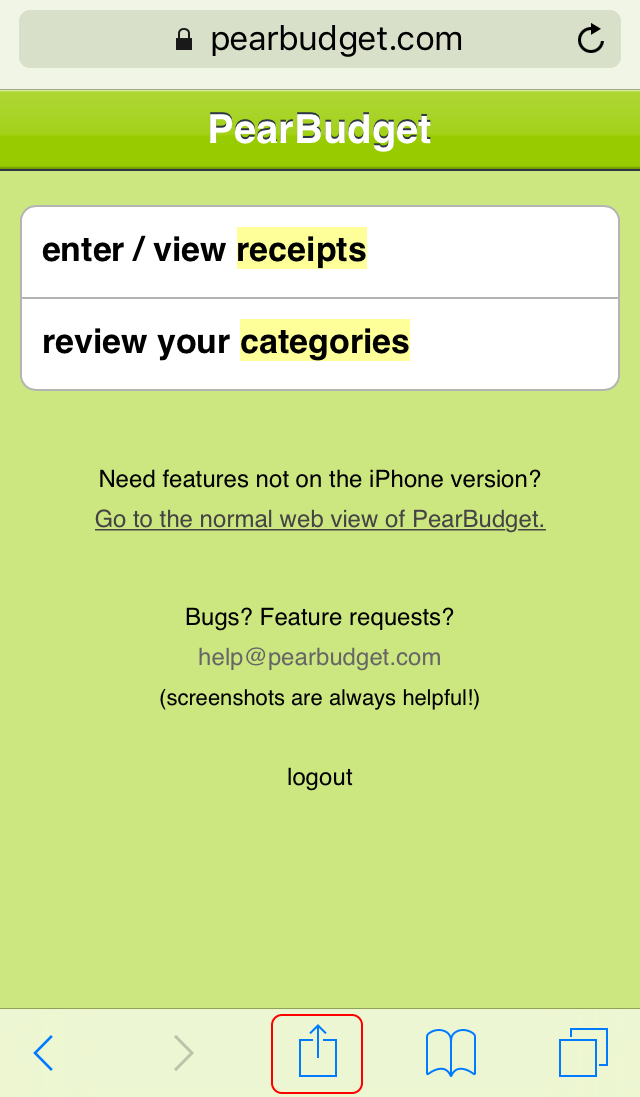
  1. Go to www.pearbudget.com on your iPhone in Safari.
  2. Login to the site.
  3. Click on the box with an arrow coming out of it at the bottom of the screen.
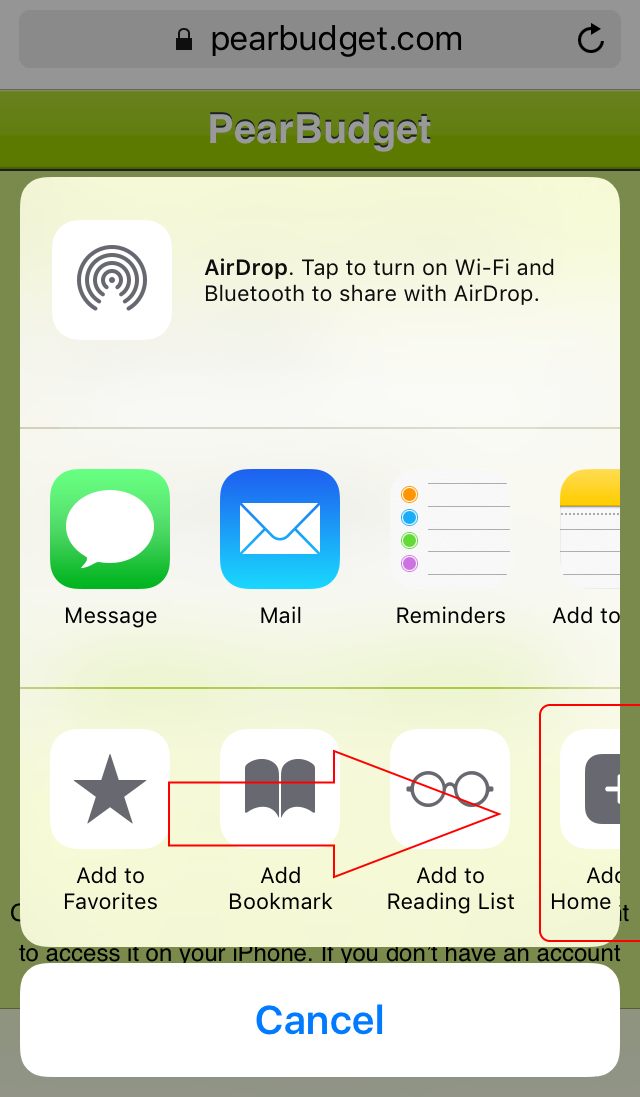
  4. You should see some options, one of which says “Add to Home Screen.”   Depending on the size of your screen, you may have to scroll over to the right.
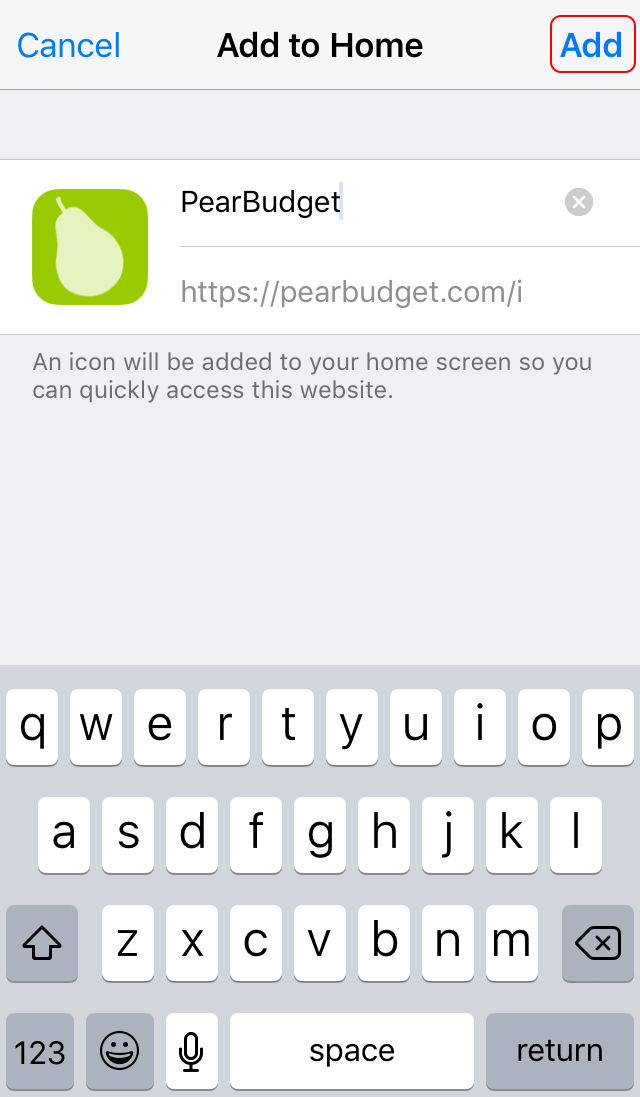
  5. On the screen that comes up, confirm that you do want to save it to your home screen (click on the “Add” link in the upper-right corner).
  6. On one of your home screens (the screens that show all of your apps), you’ll now see a PearBudget icon.
  7. You can now drag that icon to the very first start screen, or stick it in your “home row” (at the bottom of the screen), or put it anywhere you’d like.

IMG_8451Add to Home Screen Add to Home Screen Add

Extra tip for iPhone users:

If your phone won’t keep you logged in to PearBudget, try going to the Settings app, then choosing Safari, and then making sure that cookies are turned on.  That should fix that problem for you!

If that didn’t answer your question, get in touch with us by e-mail, at help@pearbudget.com.

Does PearBudget support multiple currencies?

We do! If you click on “your account” in the upper-right corner of the screen, you’ll see a spot where you can change your currency to a different symbol (or to nothing, if you prefer the minimalist look).

Some users ask us if PearBudget can handle multiple currencies at the same time. Unfortunately, in order to keep the program simple (and to not have to deal with things like currency conversions and foreign exchange rates), PearBudget only works with one currency at a time. But it can be any currency you like!

If that didn’t answer your question, get in touch with us by e-mail, at help@pearbudget.com.