Actually, your PearBudget account pages are already printer-friendly. We designed PearBudget so that if you want to print those pages out, you can, and they’re already formatted to look nice coming out of your printer. This way, you don’t have to find a special “printer-friendly” version of your data — it’s all printer-friendly.
I’d like to print my budget out. Is there a “printer-friendly” version of my Plan/Review page?
If that didn’t answer your question, get in touch with us by e-mail, at help@pearbudget.com.
Is there a list of all my recurring receipts?
There sure is! https://www.pearbudget.com/recurring_receipts.
If you want to then delete one of them, just open up the category pop-up (by clicking on the category name), reveal the advanced controls (by clicking on the gray bar at the bottom of the pop-up box), and then remove the recurring receipt.
If that didn’t answer your question, get in touch with us by e-mail, at help@pearbudget.com.
I’d like to view all of the receipts I’ve ever entered into PearBudget. Is that possible?
Absolutely! You can view all of your receipts by going to https://www.pearbudget.com/all_receipts. If you have a bunch of receipts entered, the page will take a little while to generate, so it’s safe to go get a cup of coffee after you click the link.
If that didn’t answer your question, get in touch with us by e-mail, at help@pearbudget.com.
Is there a way to export the entire year’s receipts?
You might need to get just one year’s receipts, for tax purposes or other records you might need to pass along.
Just make sure you’re logged in to PearBudget, and then click this link: https://pearbudget.com/export_receipts_for_year/2017. Replace the year with whatever year you’re interested in exporting.
You should see an option to save a CSV file on your computer. Once you save it, you can open it up in Excel, Google Spreadsheets, or another spreadsheet program.
If you’re interested in exporting all of the receipts you’ve ever entered into PearBudget, make sure you’re logged in and visit https://pearbudget.com/export_all_receipts.
If that didn’t answer your question, get in touch with us by e-mail, at help@pearbudget.com.
I’d like to keep a copy of my budget/receipts on my own computer. Can I export my data to a spreadsheet (like Excel)?
Absolutely! In just a few clicks, you can save your data to your local computer, and you can open it up in Excel (or Numbers, or Open Office, or another program) to play with it, create new graphs and comparisons, and so on.
- On any of the main pages of the application, you should see your e-mail address in the upper-right corner of the page. Click on it. [Result: it’ll open up a pop-up box with your account information.]
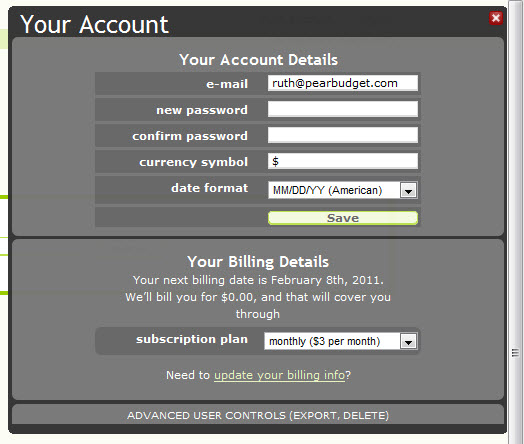
- At the bottom of the pop-up box, you should see a line that reads “Advanced User Controls” and then “Export.” Click on the word Export. [Result: it’ll reveal some more choices, including exporting.]
- Within the “Export” section, pick your desired month, and whether you want to get your budget or your list of receipts. Then hit the “Export” button. [Result: you should see a box pop up with choices for opening or saving the CSV file.]
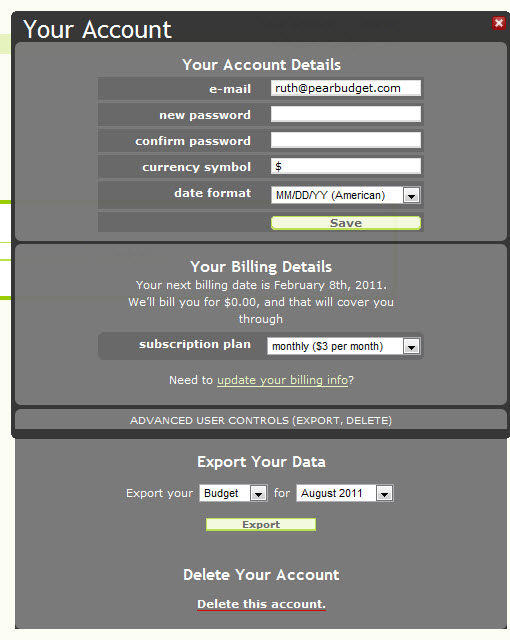
- Save the file to your computer, and you can open it up in any spreadsheet program.
If that didn’t answer your question, get in touch with us by e-mail, at help@pearbudget.com.
Wait. I enter receipts in by hand? Doesn’t that take forever?
People worry that entering receipts in by hand will take a ridiculous amount of time. It really doesn’t — roughly 10 minutes a week for most people.
- Once a week, set aside a little time (perhaps during the commercial breaks of your favorite show?) to enter your receipts and find out how much money is available in your different categories.
- At the end of the month, look over how you did and make any necessary changes for the next month’s budget.
That’s it!
If that didn’t answer your question, get in touch with us by e-mail, at help@pearbudget.com.
Can PearBudget auto-import my spending information from my bank account?
In a word: no. There are a number of other programs that do auto-import transactions. We don’t do it, for two primary reasons:
- Better Budgeting: The ultimate goal of PearBudget is to help align how you thinkyou spend money with how you actually spend money, in order to help you change your spending habits. It’s much easier to understand your spending habits when you enter your receipts yourself. When your budgeting is on auto-pilot, it’s way too easy for your spending to be on auto-pilot, too (that’s not a good thing).
- Better Security: It takes a lot of resources to make sure that a site with banking passwords is secure. We’re focused on providing a simple, secure budgeting resource, and we feel that incorporating bank passwords would compromise that. By not bringing your online banking passwords into the picture, we protect you and your money from any funny business.
If that didn’t answer your question, get in touch with us by e-mail, at help@pearbudget.com.
What’s the difference between “monthly” and “irregular” categories?
Monthly Expenses
These are for expenses that you have every single month — like electric bill or groceries. At the beginning of each new month, you get a clean slate. Overspent or underspent money doesn’t roll over from one month to the next.
Irregular Expenses
These are for expenses that you have at least once a year, but not necessarily every month — like gym membership or car maintenance. The unspent money for each category rolls over from one month to the next. This allows you to save up for larger expenses, like your vacation or Christmas.
You can set up or change the amount you’re planning to spend in all of 2011 on your irregular categories here: https://pearbudget.com/set_up_2011.
If that didn’t answer your question, get in touch with us by e-mail, at help@pearbudget.com.
How do I record refunds/rebates/store credit?
You can record a refund or a rebate on an item just like you recorded the item itself — by entering a new receipt. However, instead of entering a positive amount for the receipt (like normal), use a negativeamount. So, if you return a sweater and the store gives you $30 back, then you’d record -$30.00 in the amount field. (Make sure the new receipt is in the same category as the original receipt.) The same would be true on a $20 rebate received for a new cell phone, for example. You would enter a receipt for -$20 and put it in the same category as the original cell phone purchase.
If that didn’t answer your question, get in touch with us by e-mail, at help@pearbudget.com.
Where do I record the actual income that comes in?
You enter income in the same place you enter your expenses, on the Enter Your Receipts page. If you look at the drop-down box for the “category” entry, you’ll see that, at the bottom of the list of expenses are your income categories. Just pick the right income category, and the amount you enter will count as money in!
If that didn’t answer your question, get in touch with us by e-mail, at help@pearbudget.com.